| Support Category: Certificate Inquiry | Print |
| Specialist Notes: |
Proxy enroll to verify the course shows up as completed under the completed tab and that a Print Certificate option is even visible. If not, check to see if the course is:
- Part of a curriculum (completion of the entire curriculum is required in most cases)
- A course created as 'External training' which means the learner accessed another website to complete the training (we don’t usually offer certificates)
➤If you determine the course is completed and has a certificate available but learner is having trouble navigating the site, be prepared to send the certificate.
➤If you are not able to locate the course under the 'Active' or the 'Completed' tab, check the 'Archived' tab to see if the course was accidently archived. If so, please see the Access Certificate for Archived Courses SR.
| Canned Response Code: /DR06 |
| Standard Response: |
To print your certificate, please follow the steps below.
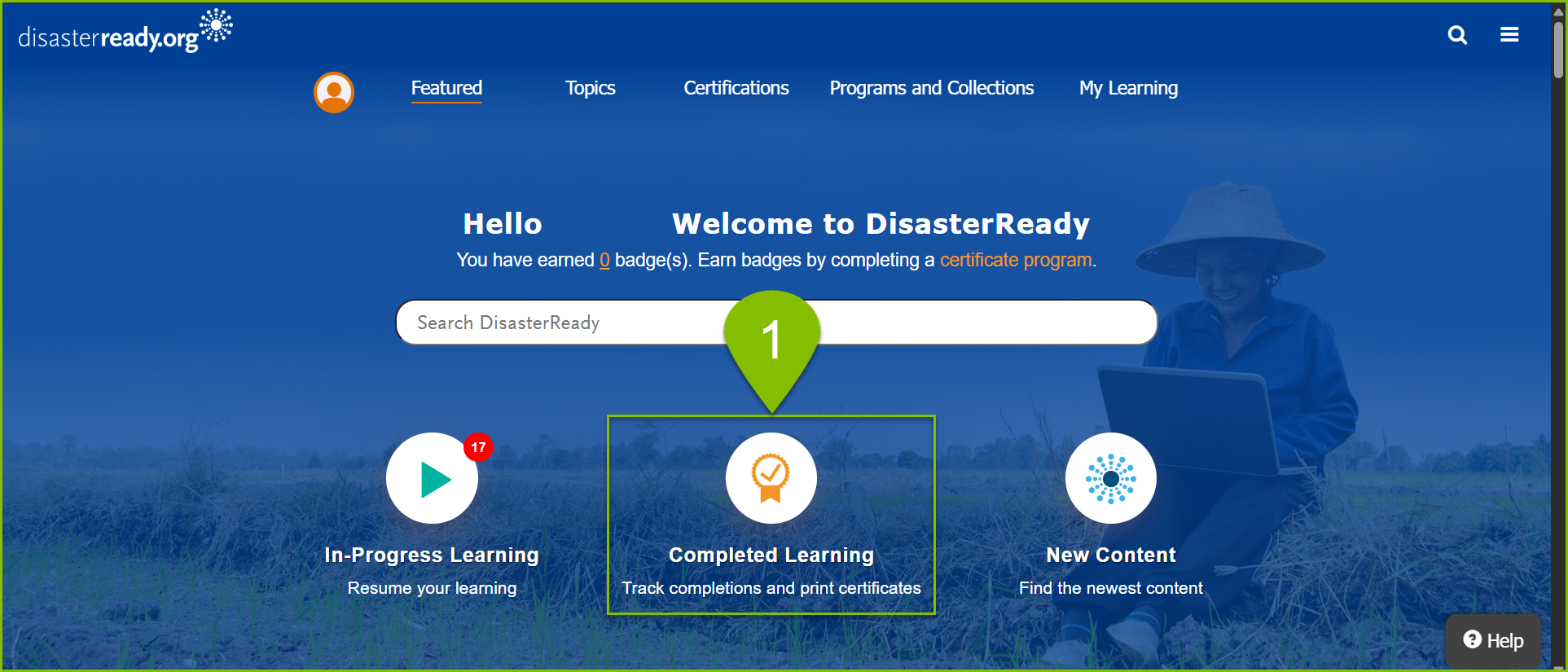
1. From the Home page after logging in, scroll half way down and select the 'Completed Learning' link on your homepage after logging in to go straight to the 'Completed' page of your Transcript.
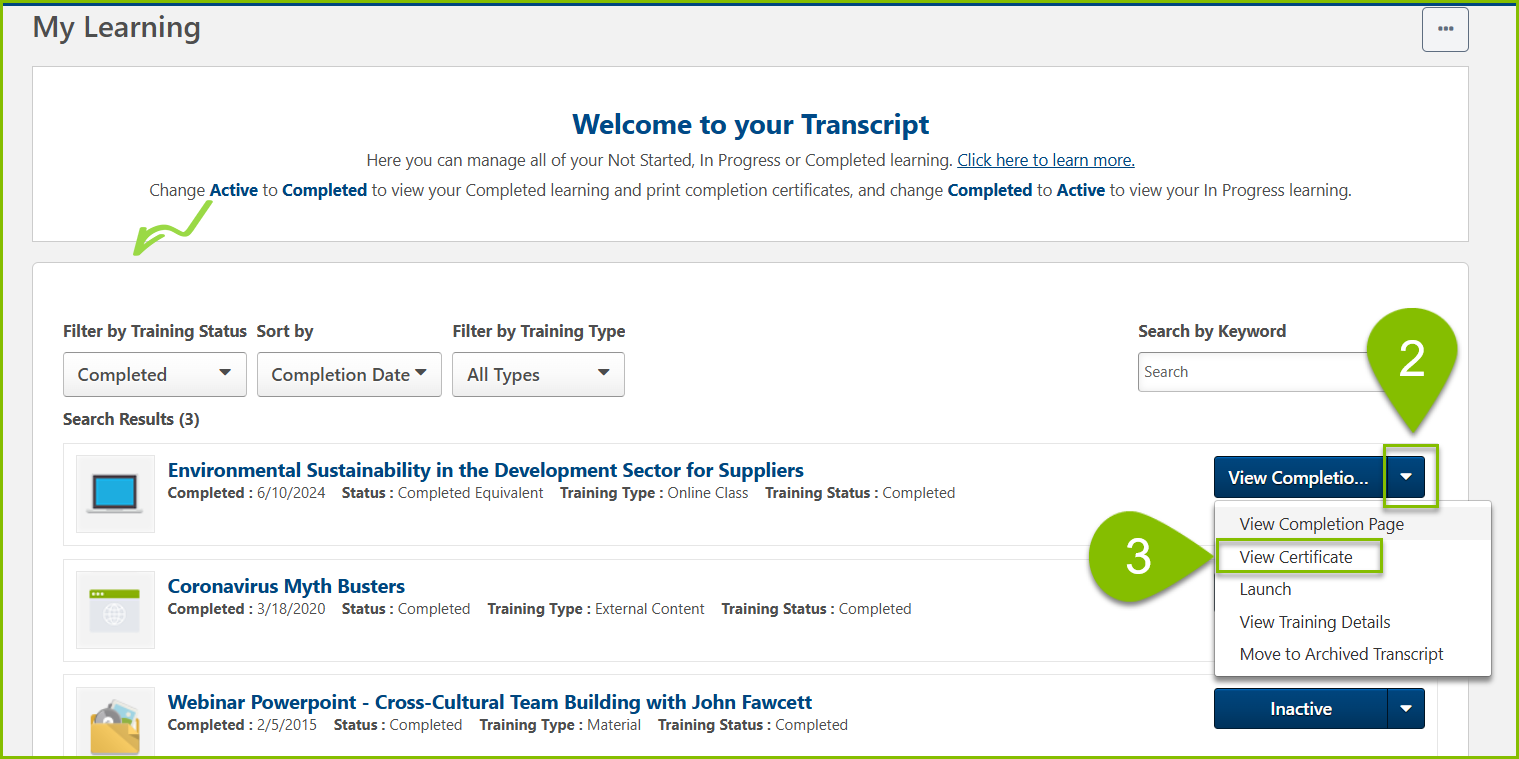
2. From the Completed page of your Transcript, click the drop-down arrow on the right hand side of the course title.
3. Click on 'View Certificate' from the drop-down menu.
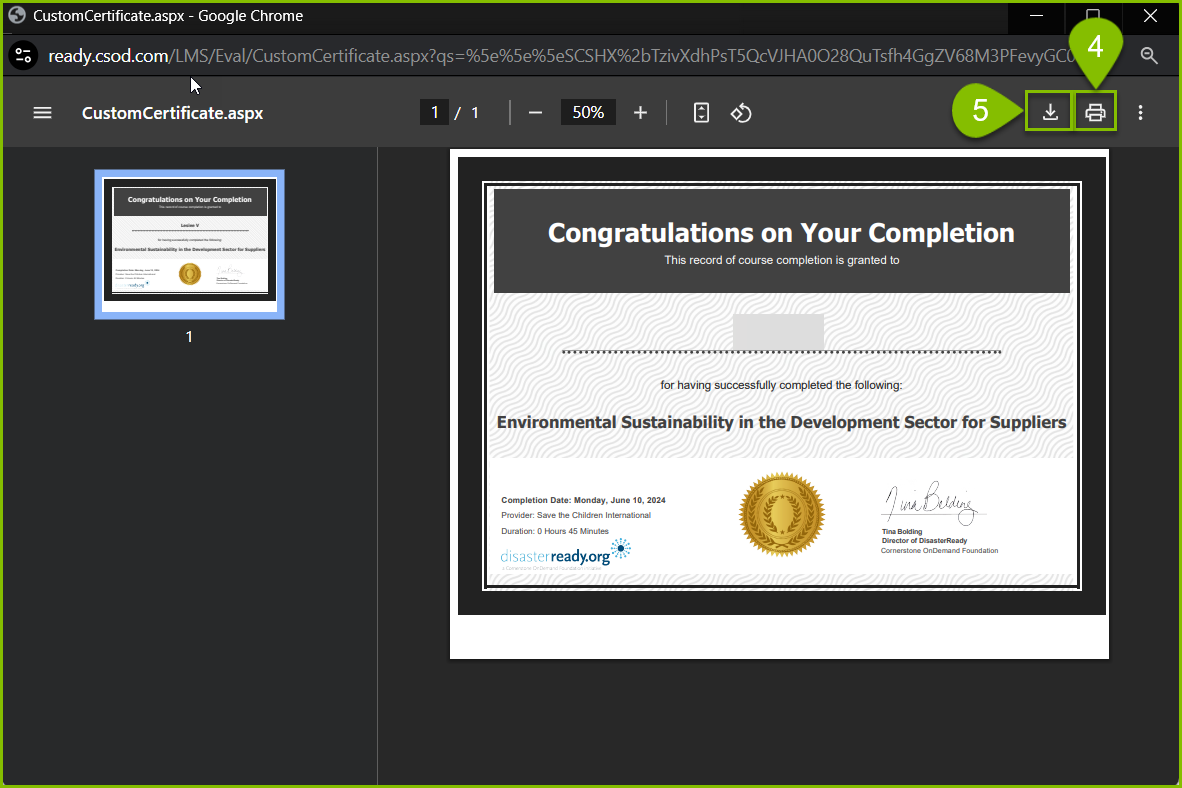
4. A new window will open. From that window, select the download button to save the Certificate as a PDF file in your computer
OR
5. Select the printer icon to print your certificate.
Kindly note that some courses may require you to complete an online evaluation at the end of the course before you can print your certificate. Additionally, some courses do not offer completion certificates. You will only see a notification confirming completion.